



Too Many Codex Chats? My Experience Deleting Them in Bulk
After using Codex for a while, the sidebar easily fills with temporary investigations, completed tasks, repeated attempts and conversations you will never reopen.
When cleaning up, I found that archiving, permanent deletion and refreshing the recent-chat list are three different things.
Searching online, I found people on Reddit facing the same problem.
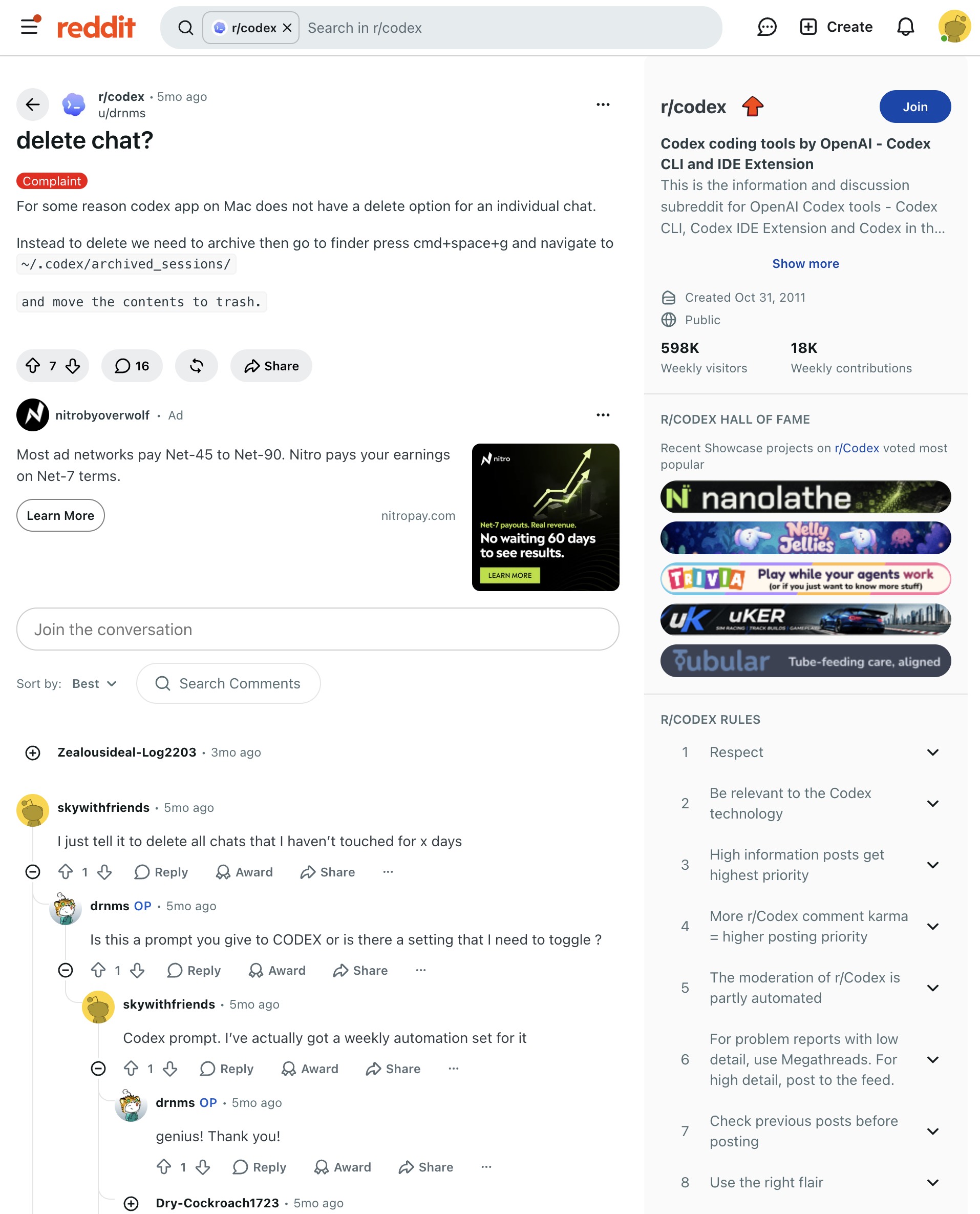
A comment below roughly means: “Tell it to delete every chat I have not touched in x days.”
I followed that idea to clean up local chats with no activity for more than five days.
I selected 55 local chats. After deletion, the number matching my criteria was zero. But some old entries remained in the recent-chat list and said the chat had been deleted when clicked.
Here are the parts of the process worth sharing.
1. First decide: hide the chat or delete it permanently?
Archiving helps tidy the sidebar: chats disappear from the active list, but their records remain and can be restored.
If you no longer need the contents, use permanent deletion. A cleaner list does not prove that the underlying records are gone.
The app may display local Codex sessions alongside ordinary ChatGPT cloud chats. A command that cleans local sessions does not also delete cloud chats.
2. Local Codex has a permanent-delete command
The official reference documents deleting by session ID or name:
codex delete 'Full chat title'
Read the prompt and confirm the scope before proceeding. Permanent deletion may also remove descendant sessions. Official command reference
My first attempt returned:
-bash: codex: command not found
This did not necessarily mean Codex was absent. The terminal could not find the bundled command; using its full executable path worked on this machine.
The path on my Mac was:
"/Applications/ChatGPT.app/Contents/Resources/codex-cli/CodexCLI.app/Contents/MacOS/codex" delete 'Full chat title'
This is the path I used, not a universal installation path. Locations vary by installation and version; check yours if the command cannot be found.
3. Bulk cleanup starts with an accurate list
Typing titles one at a time is slow and easy to get wrong. A more practical workflow is to read the session list, filter it and delete by session ID.
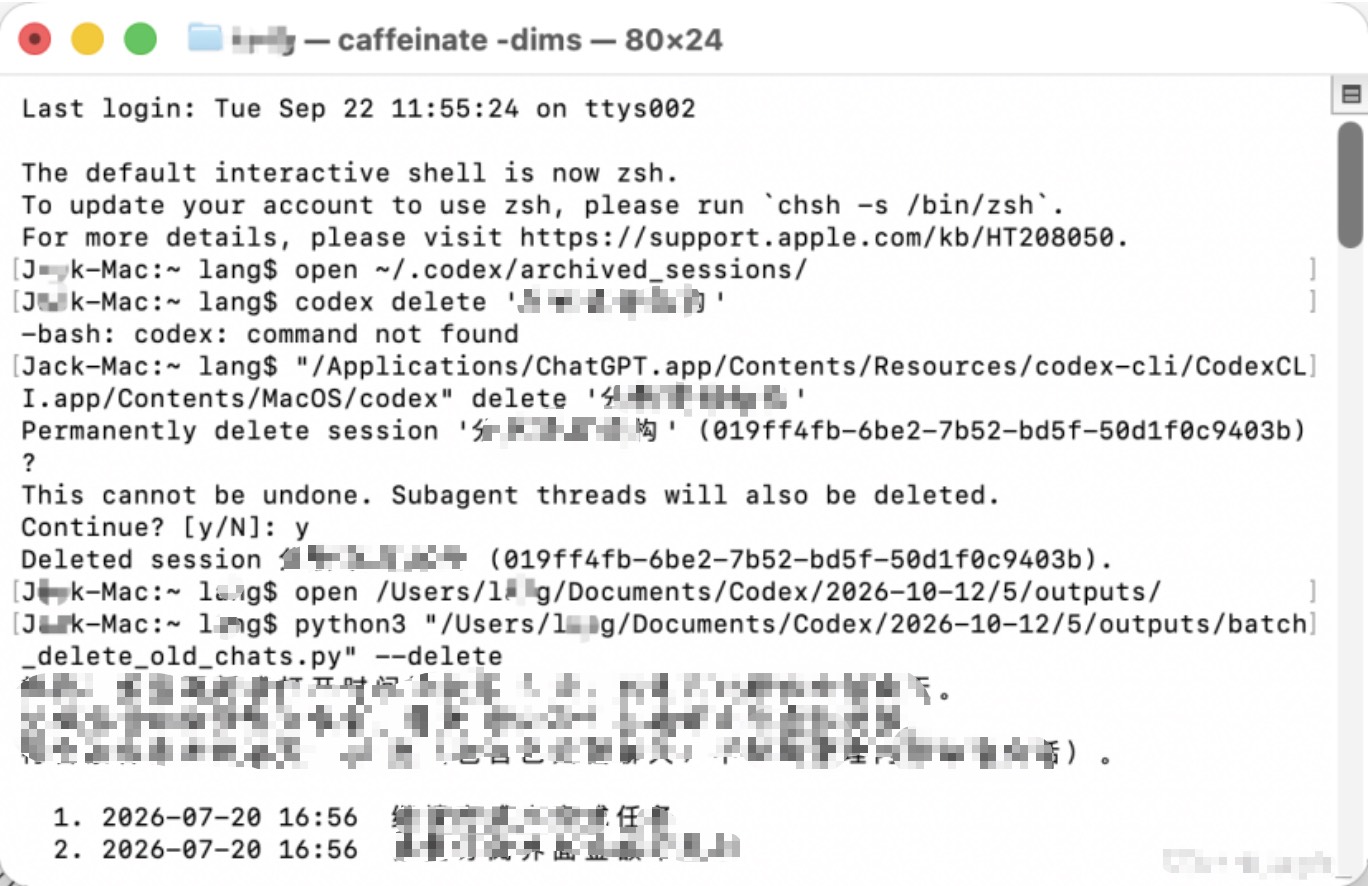
My rules were:
- Both the last-update time and the most recent available open time were more than five days old.
- Include archived local chats.
- Keep related sessions when their session tree has recent activity, to avoid deleting active descendants.
- Do not treat internal review sessions as separate cleanup targets.
Read the full list, including later pages. Looking only at the few dozen entries in the sidebar can miss older chats.
The tool should show the selected list and wait for confirmation before calling deletion. The official --force option skips individual prompts only when the target is a UUID, making the initial review important. Parameter reference
I first used a read-only preview, which found 55 matching local chats. Reading the list again after deletion returned zero matches.
(I plan to provide the Python bulk-cleanup script separately.)
4. Why do recent chats remain after deletion?
The confusing part was that old titles remained in the recent list, but clicking them reported that the chats had been deleted.
The refreshed session inventory showed that deletion had taken effect. Stale UI entries were likely a list-refresh issue; titles still being visible did not prove deletion had failed.
Wait for running tasks to finish, then quit the app completely and reopen it. On Mac, use ⌘Q rather than only closing the window. The official troubleshooting page also recommends restarting after active chats finish when the app stays stuck. Official troubleshooting
If invalid entries persist, investigate the list state instead of repeatedly deleting the same chats. I had not yet verified the UI after a restart, so this is not a confirmed fix in my account.
5. Check two results when cleanup is complete
A complete cleanup needs two separate checks:
- Records deleted: read the session list again and check that the targets are absent.
- Interface refreshed: check for invalid entries in Recents and the sidebar.
The important part of bulk cleanup is defining the scope, reviewing the list and checking the result. That removes unwanted chats while distinguishing a failed deletion from an interface that has not refreshed.