


Getting Started & Troubleshooting
A short guide. Most users never need this — but when something doesn't work, it's almost always one of the four issues below.
1. Install
- Open the install link for Chrome. On Microsoft Edge, use the Edge Add-ons link.
- Click Add to browser on the store page.
- Pin the toolbar icon so it's always one click away.
That's it. No account needed for free use.
2. Your first export
- Open any supported AI chat — say, ChatGPT.
- Scroll to the top of the conversation so all messages are loaded (more on this below).
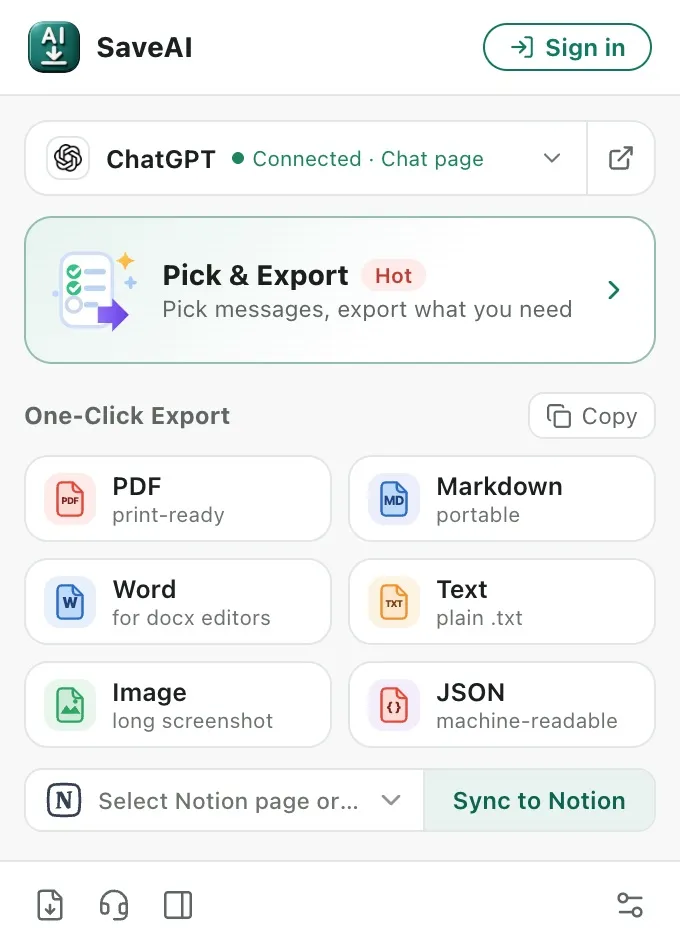
- Click the SaveAI toolbar icon.
- Pick a format: PDF, Word, Markdown, JSON, TXT, or long screenshot.
- The file lands in your Downloads folder.
The first PDF export can take a second while the page is laid out — later exports are faster.
Two ways to export
- One-Click Export — pick a format in the grid and the whole conversation is saved. Nothing else to decide.
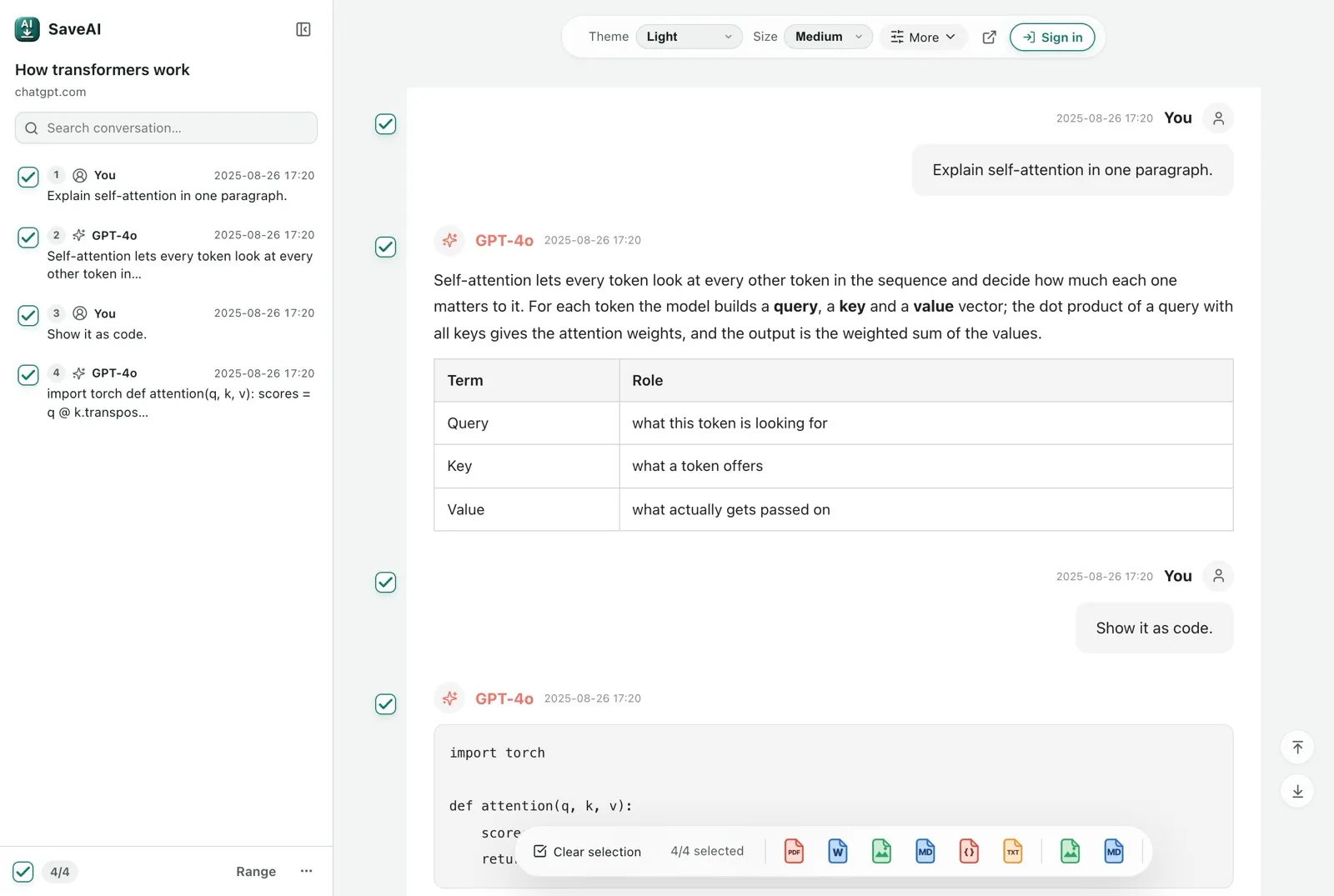
- Pick & Export — opens the conversation in a preview tab where every message has a checkbox. Untick the detours, keep the answer you actually want, then export the selection.
3. Picking the right format
- PDF — for sharing or printing. Best fidelity, per-site theming.
- Word — when you need to edit the text afterwards.
- Markdown — paste into Notion, Obsidian, or a static-site generator.
- JSON — feeding chats into a pipeline or dataset.
- Long screenshot — sharing on social or attaching to a ticket.
What you can change about the PDF
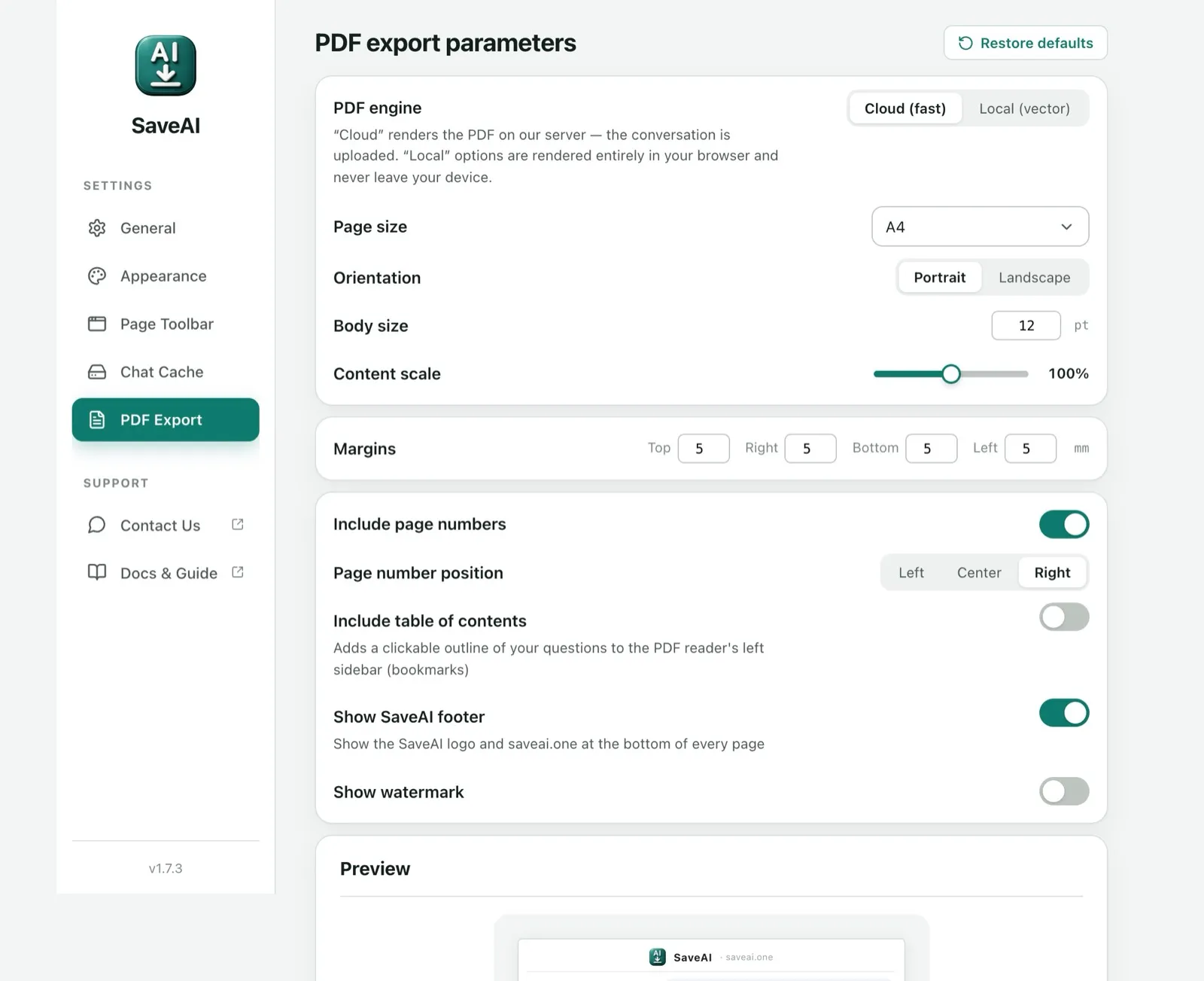
Open the extension’s settings and go to PDF Export. The live preview at the bottom shows the page shape as you change things.
- PDF engine — “Cloud” renders on our server and is the fastest; the conversation is uploaded for rendering. “Local (vector)” renders entirely in your browser and nothing leaves your device.
- Page size, orientation, margins, body size, content scale — the usual print controls.
- Page numbers, table of contents, SaveAI footer, watermark — all optional. The table of contents becomes a clickable outline in your PDF reader’s sidebar.
4. Troubleshooting
The export is missing older messages
Most AI sites virtualise long chats — older messages aren't in the DOM until you scroll to them. Scroll to the very top of the conversation, wait a beat for everything to render, then click export.
The PDF says "rendering failed"
Usually one of three things:
- The chat is very large. Try Markdown or Word, or split it into parts and export each.
- Not all messages are loaded. Scroll to the very top of the conversation first, then export.
- The site changed its DOM and our extractor needs an update — a fix is pending. Check the extension's update timestamp in
chrome://extensions.
The toolbar icon does nothing
Three checks:
- Are you on a supported site? The icon is greyed out elsewhere.
- Did the page finish loading? Try refreshing.
- Is the extension enabled? Open
chrome://extensionsand verify the toggle is on.
Sign-in keeps failing
Sign-in uses Google OAuth. If the redirect fails, clear cookies for saveai.one and try once more. Still stuck? Email us with the error message.
5. Privacy summary
The short version:
- Word, Markdown, JSON, TXT and screenshot exports are generated locally in your browser and nothing is uploaded. PDF is rendered on our server by default (switchable to local rendering in Settings).
- The only network calls are optional Google sign-in and anonymous analytics.
- Server-side we keep only your account info (if you sign in) and a daily export count for capacity planning. That's the whole list.
- We don't train models. We don't sell data. We don't have ads.
Full Privacy Policy. The English version controls where translations differ.
6. Terms (short version)
Use SaveAI for your own conversations. Free to use — every feature and every export format is free and unlimited. We reserve the right to suspend accounts that abuse the service. Full Terms of Service.
Feedback page — for everything not covered here.