



Export Gemini chats to PDF, Word & Markdown
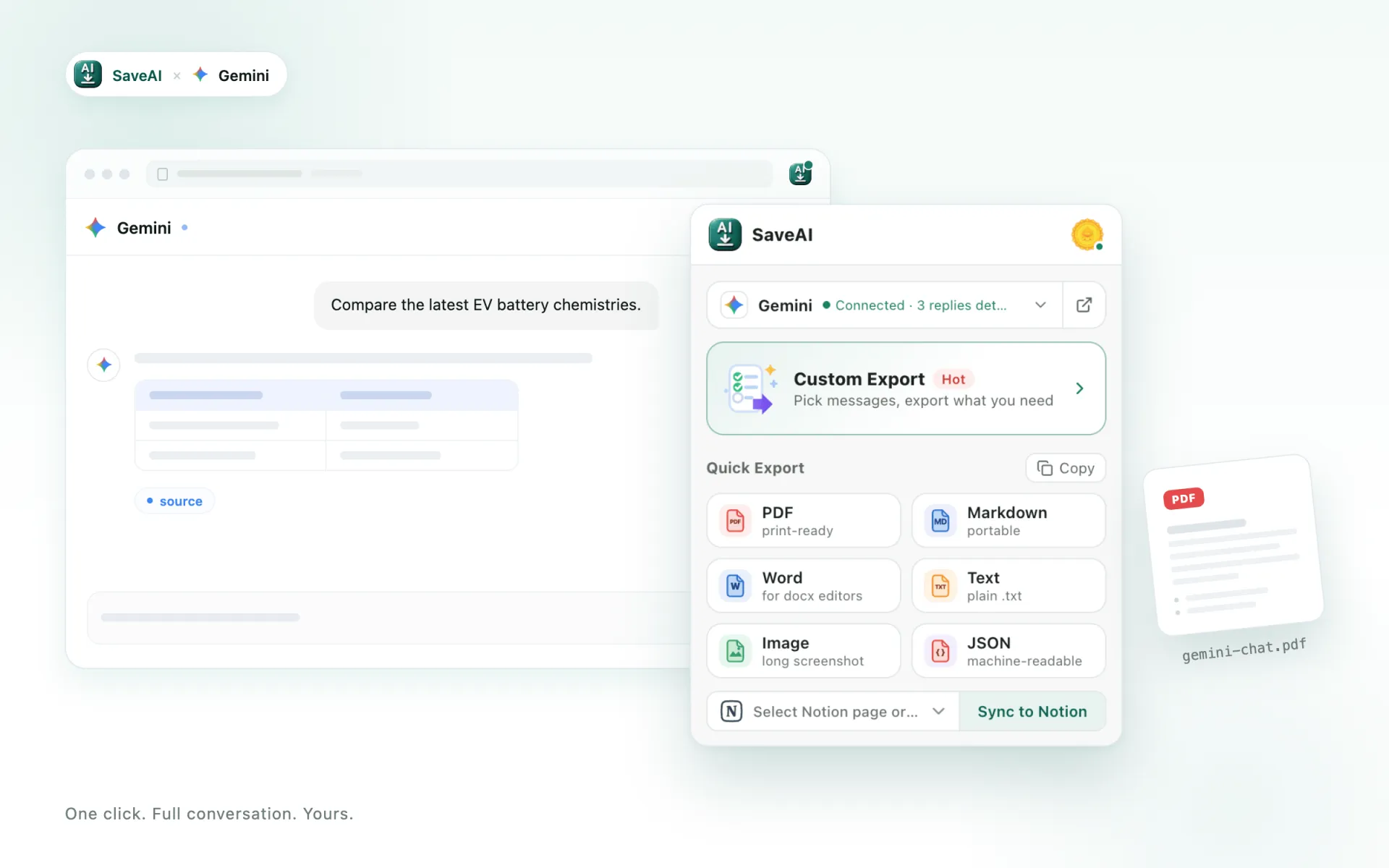
Save any Gemini conversation as a polished PDF, an editable Word document, clean Markdown, JSON, or one long screenshot — in a single click, completely free.
- Free & unlimited
- No account needed
- Local-first & offline
Just want a polished PDF with 8 themes? Gemini to PDF →
Why export Gemini with SaveAI
Everything you need to turn a Gemini thread into a document worth keeping.
Faithful to the original
Code blocks, LaTeX math, tables and images export exactly as they appear in Gemini — in every format.
Six export formats
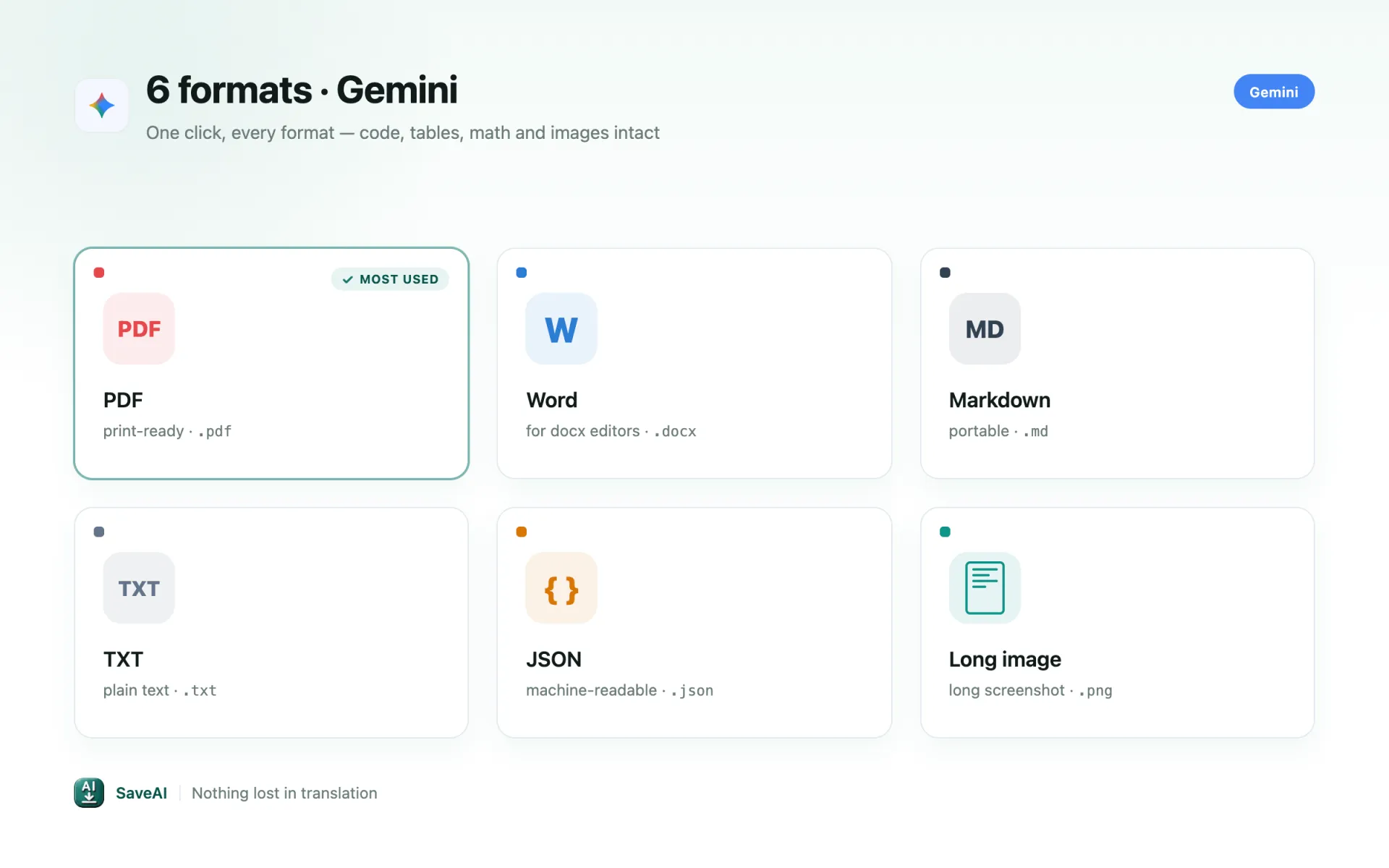
PDF for sharing, Word for editing, Markdown for your tools, JSON for scripts, or one long image — pick what fits.
Nothing gets cut off
Even thousand-turn Gemini chats export in full — no truncation, no missing messages.
Export only what matters
Pick individual messages, or just the questions or just the answers, before you save.
Free, with no watermark
Unlimited exports in every format, no account required, and never a watermark on your files.
One click, no setup
Install, open your Gemini chat, and export — no API key, no configuration.
Built for Gemini, not just bolted on
A generic exporter grabs whatever is on screen. SaveAI reads Gemini's own conversation data, so these Gemini-specific cases come out right.
Long chats come out in order
Gemini serves conversation history newest-first, one page at a time. SaveAI follows every page and restores the original order, so a long conversation reads top to bottom instead of backwards.
Internal tags removed
Gemini's responses carry proprietary markup that has no meaning outside its own UI. SaveAI strips those tags so they don't show up as literal noise in your PDF or Word file.
Generated images and your uploads
Images Gemini generated and files you attached both make it into the export, images inlined into the document itself.
How to export a Gemini chat
Install SaveAI
Add the free extension from the Chrome Web Store and pin it to your toolbar. No account or API key needed.
Open your Gemini conversation
Go to Gemini, open the chat you want to save, and refresh the tab once after installing.
Export in one click
Click the SaveAI icon or the in-page button, choose your format, and the file downloads right away.
One click, every format
Export to PDF, Word, Markdown, JSON, TXT or a long screenshot — with 8 PDF themes, page numbers, timestamps and margins you control.
What people export Gemini chats for
Study notes
Students turn Gemini explanations into clean documents for revision and offline reading.
Research records
Researchers archive Gemini threads with timestamps and sources for citation and reference.
Writing & content
Writers keep Gemini drafts and ideas as tidy files to reuse and share.
Developer reference
Developers save Gemini code answers as searchable, well-formatted documents.
Pick the format that fits
PDF for sharing and archiving, Word for editing, Markdown for Obsidian and Notion, JSON for scripts and datasets, or a long screenshot for social. Every Gemini export keeps code, tables, math and images intact.
Gemini export — common questions
Is the Gemini exporter free?
Does it keep the formatting from Gemini?
Can I export only part of a Gemini chat?
Do my Gemini chats get uploaded?
Which sites does SaveAI support?
Start saving your Gemini chats
Free, unlimited, one click — turn any Gemini conversation into a clean document you can keep.