



Turn an AI Share Link Into a PDF
A colleague drops a link into the group chat: “read what the AI said.” You open it on your phone, the answer is genuinely useful, and you want to keep it — or pass it on as a proper document. But a share page is just a web page: there is no Save button, and on a phone or a locked-down work laptop, installing a browser extension is not an option.
That is the moment this free tool is built for: paste the share link, pick a format, and download the whole conversation as a real file — no account, nothing to install, and it works the same on a phone. Here is how to use it, which links it can read, which it cannot, and what happens to your conversation along the way.
Three steps, no sign-up
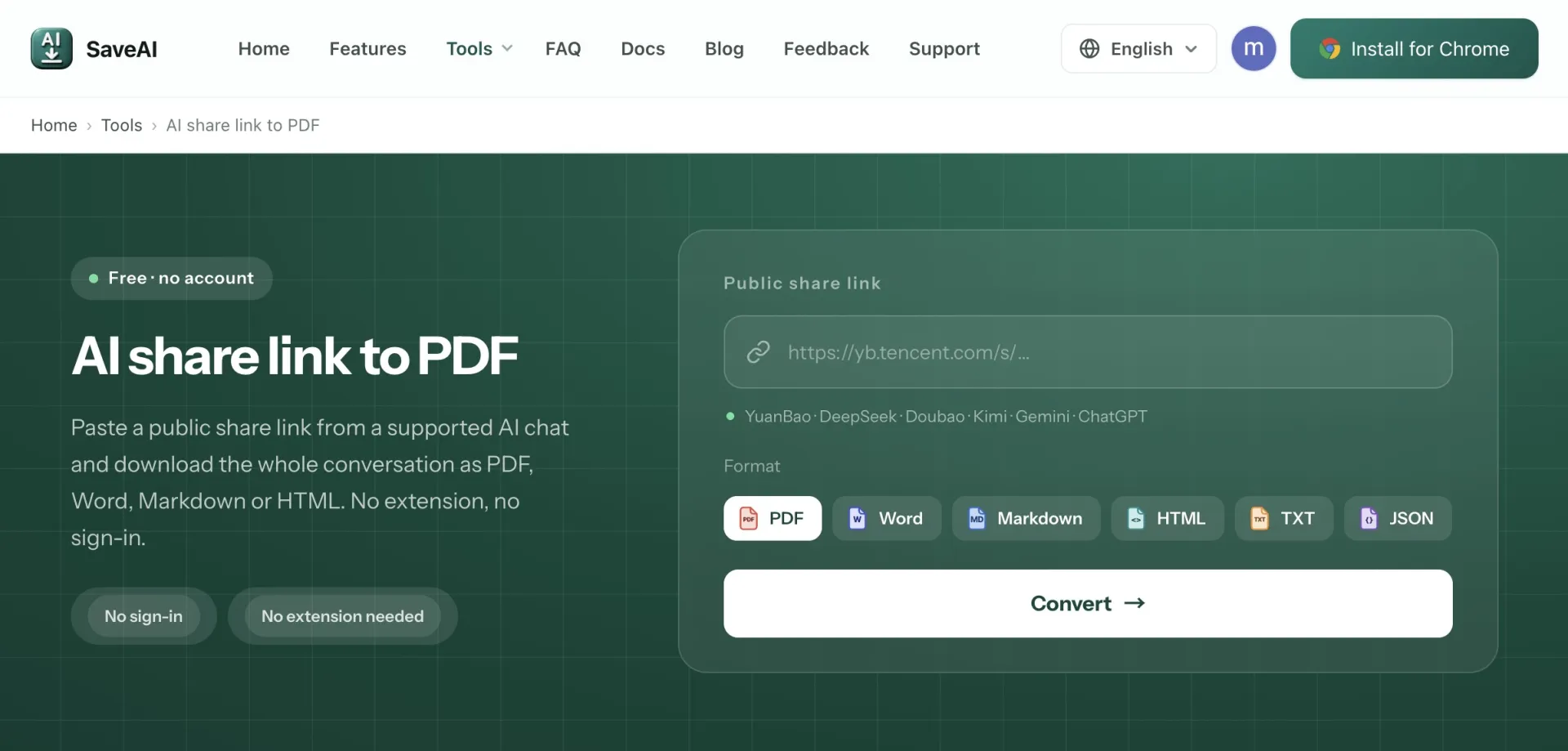
Open the share-link tool, paste the link into the box, pick a format from the dropdown, and press Convert. The file downloads a few seconds later. There is no account to create and no software to install.
It runs in the browser you already have, so a phone works exactly like a laptop: long-press the link in your chat app, copy it, paste it, download. That is the whole point — it exists for the moments when installing anything is out of the question.
What you get is the entire conversation, not just the part visible on screen: every question and every answer in their original order, with code blocks, tables and formulas carried across intact.
Which links work — and which need the extension
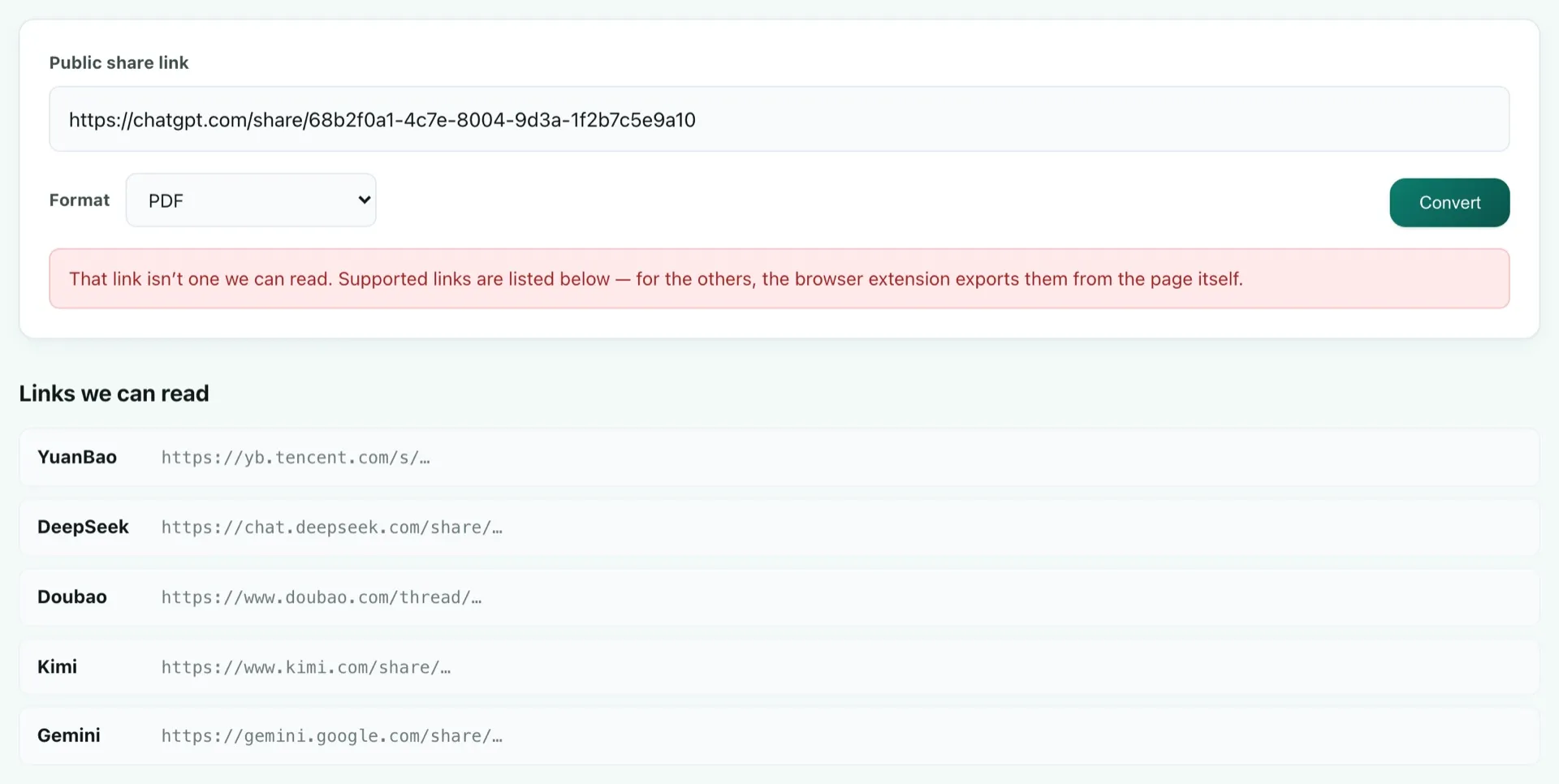
A web page cannot read another site's data directly, so the tool asks our server to open the share link for you. That works whenever the shared page is genuinely public, and five sites publish links like that: Tencent YuanBao, DeepSeek, Doubao, Kimi and Gemini. The list on the tool page is the authority — it is fetched from the server, so it can never keep advertising a site that has stopped working.
Some share pages only look public. ChatGPT, Claude and Microsoft Copilot render the conversation only after you sign in, so a server opening the same link sees an empty shell; a Claude artifact is drawn into the page by the app itself rather than served as a document. It is not that we cannot read those — nobody can read them from a link alone.
That is where the browser extension takes over: it exports from the page you already have open and signed in, so it reaches ChatGPT, Claude and the rest. An honest division of labour — links for what is public, the extension for what is behind your login.
Six formats, and when to use each
PDF is the one to hand to someone else. Pages are properly paginated, formulas are typeset, and tables and code are fitted to the paper instead of being cut off at the margin — the formatting details are a post of their own.
Word (.docx) is the one to keep editing. Headings stay real headings, so they show up in the navigation pane, and lists and tables stay real lists and tables rather than pictures of them.
The other four each have their place: Markdown for notes — drop it straight into Obsidian or any notes app — HTML for the web, plain text where only characters are allowed, and JSON when a script is going to read it.

What happens to your conversation
Because the link is opened on our server rather than in your browser, the data is worth being precise about: the share link is fetched once, to pull out the messages, and the conversation itself is not stored.
The one thing kept, briefly, is a PDF you generate — deleted after about seven days, so the download link keeps working in the meantime. The full detail is in the privacy policy.
The share-link tool is for the moment you have a link and nothing else — no account, no install, any device. Try it with the next AI answer someone sends you: paste the link, get the document.
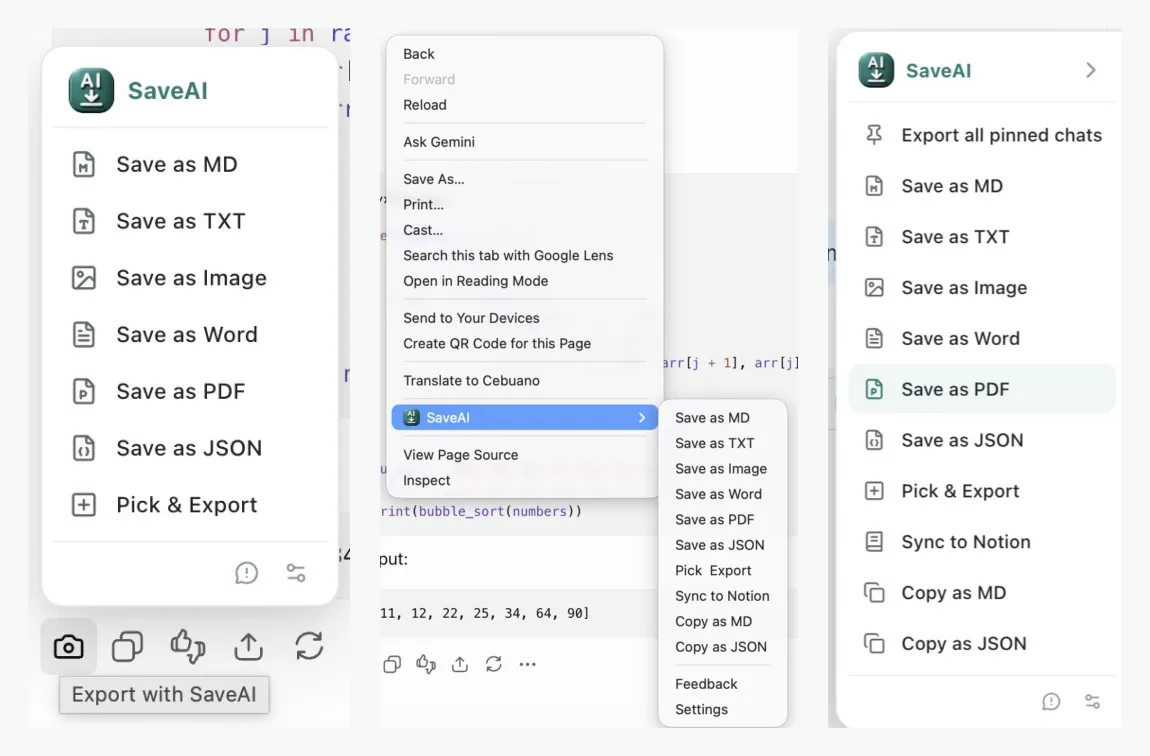
And when the conversation is your own — open in front of you rather than sent as a link — the free SaveAI extension exports it in one click on Chrome, Edge and Firefox, across 20 AI sites including the ones a public link can never reach.
Ready to start exporting?
SaveAI works on 20 AI sites including ChatGPT, Claude, Gemini. Free to start, local-first.
Install for Chrome Free Install for Edge Free Install for Firefox Free