



Stop Screenshotting Your AI Chats
Somewhere on your computer there is a folder — or a chat with yourself — full of screenshots of AI answers. A prompt that finally worked, a code snippet, a plan worth keeping. Three weeks later you need one of them, and you find yourself squinting through forty near-identical PNGs, because all you remember about the answer is a phrase — and pictures don't answer to Ctrl-F.
Screenshotting is a reasonable reflex: it is the fastest capture there is, and it works on anything. But for AI conversations it is the wrong tool, because the thing that makes a conversation worth keeping — the text — is destroyed on the way in. Here is exactly what a screenshot throws away, and what a one-click export keeps.
What a screenshot throws away
First, the text itself. A screenshot is pixels. You cannot search it, cannot copy the prompt back out to run it again, cannot paste the code into an editor. The moment an answer becomes an image, reusing it means retyping it.
Second, everything outside the viewport. Conversations are long and screens are short, so a real chat becomes a dozen frames to stitch. Code blocks scroll sideways, and the hidden ends of long lines never make it into any frame; collapsed reasoning stays collapsed. What you keep is not the conversation — it is whatever happened to be on screen.
Third, all structure. No title, no date, no model name — just IMG_4032.png, multiplied by months. And an image is, ironically, the heaviest possible container for text: a long chat stored as screenshots weighs far more than the same conversation saved as an actual file.
Export reads the conversation, not the screen
A browser extension can do what a screenshot cannot: ask the site for the conversation itself. SaveAI reads each platform's own data, so long chats are fetched page by page until they are complete, and edited or regenerated messages follow the branch you actually kept instead of interleaving abandoned drafts. Whether the model's reasoning sections come along is a setting.
It works the same way on 20 sites — ChatGPT, Claude, Gemini, Grok, Copilot, Perplexity, DeepSeek and more. One button on the page or in the extension popup; no selecting, no copy-paste, no switching tabs.
And before anything is saved you can open a preview and tick exactly which messages to include — keep the final working version, drop the six dead ends that led to it. No screenshot workflow offers that.
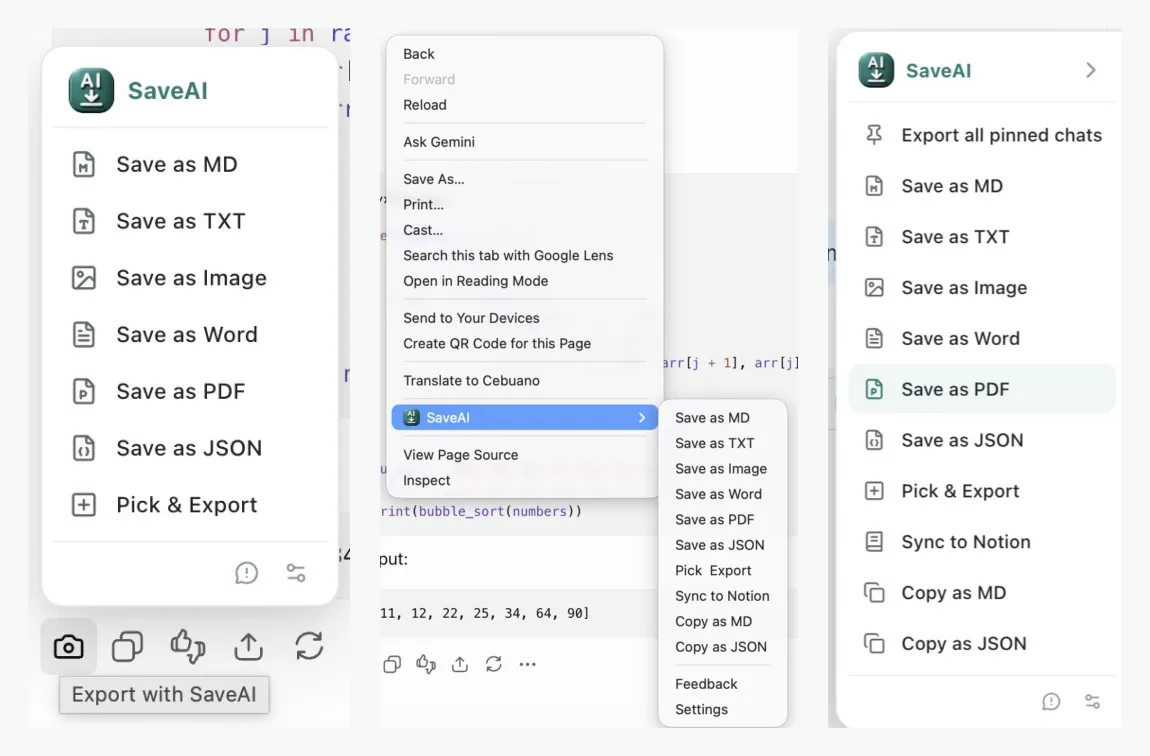
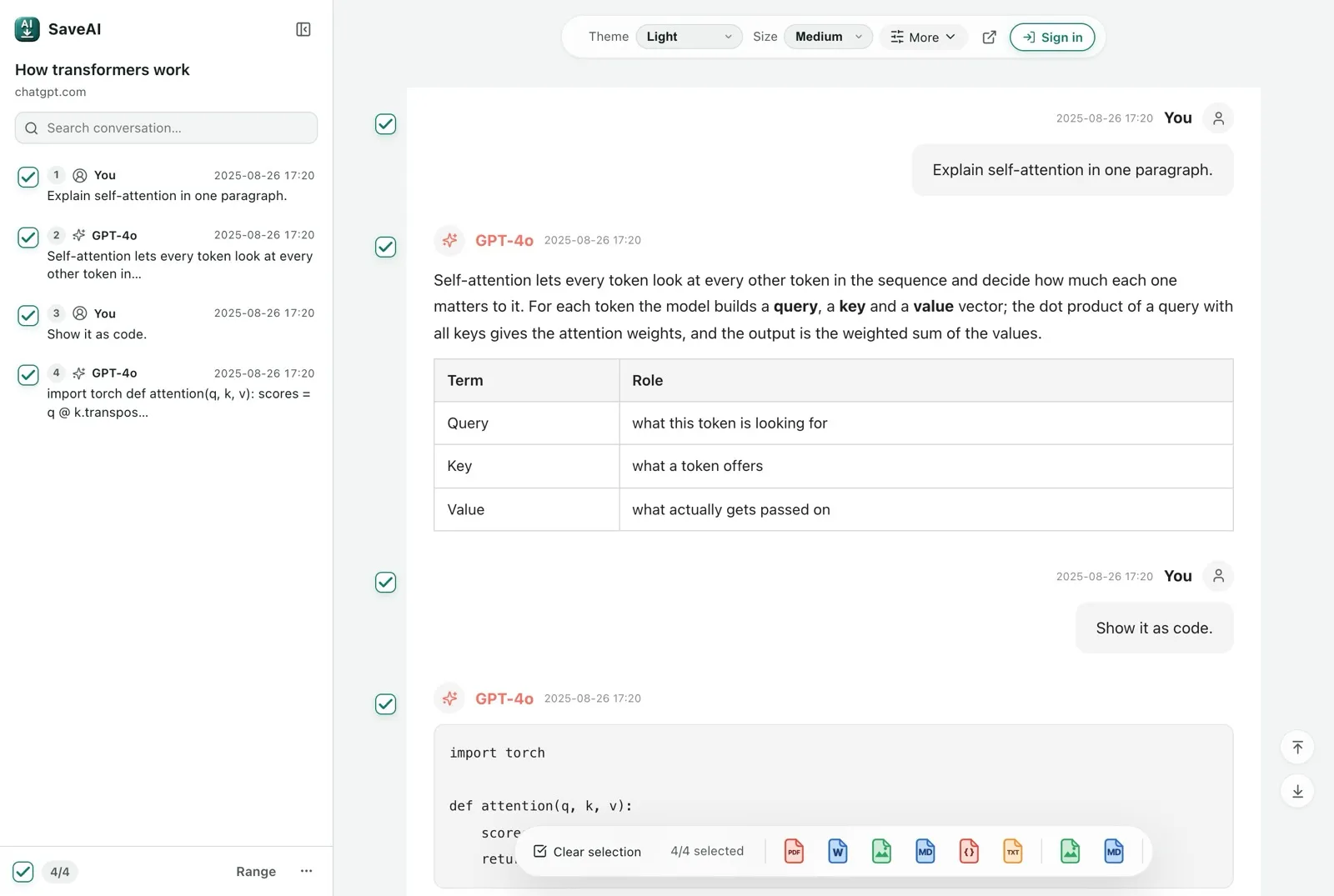
One conversation, six formats
Once the export is real text, the format is a choice rather than a compromise. PDF is for handing the conversation to someone else or archiving it: properly paginated pages, typeset formulas, tables and code that fit the paper — the details are a post of their own. Word is for answers you will keep editing: real headings that appear in Word's navigation pane, real lists and tables.
Markdown is for your notes: drop the file into Obsidian or any notes app and the conversation becomes part of a knowledge base you own and can search. JSON keeps the structure for scripts and pipelines; TXT is the plainest possible hand-off. A conversation can also go straight to a Notion page.
And when an image genuinely is the right thing — sharing a moment into a group chat — export one long screenshot of the entire conversation in a single click, rendered top to bottom, instead of stitching frames by hand.
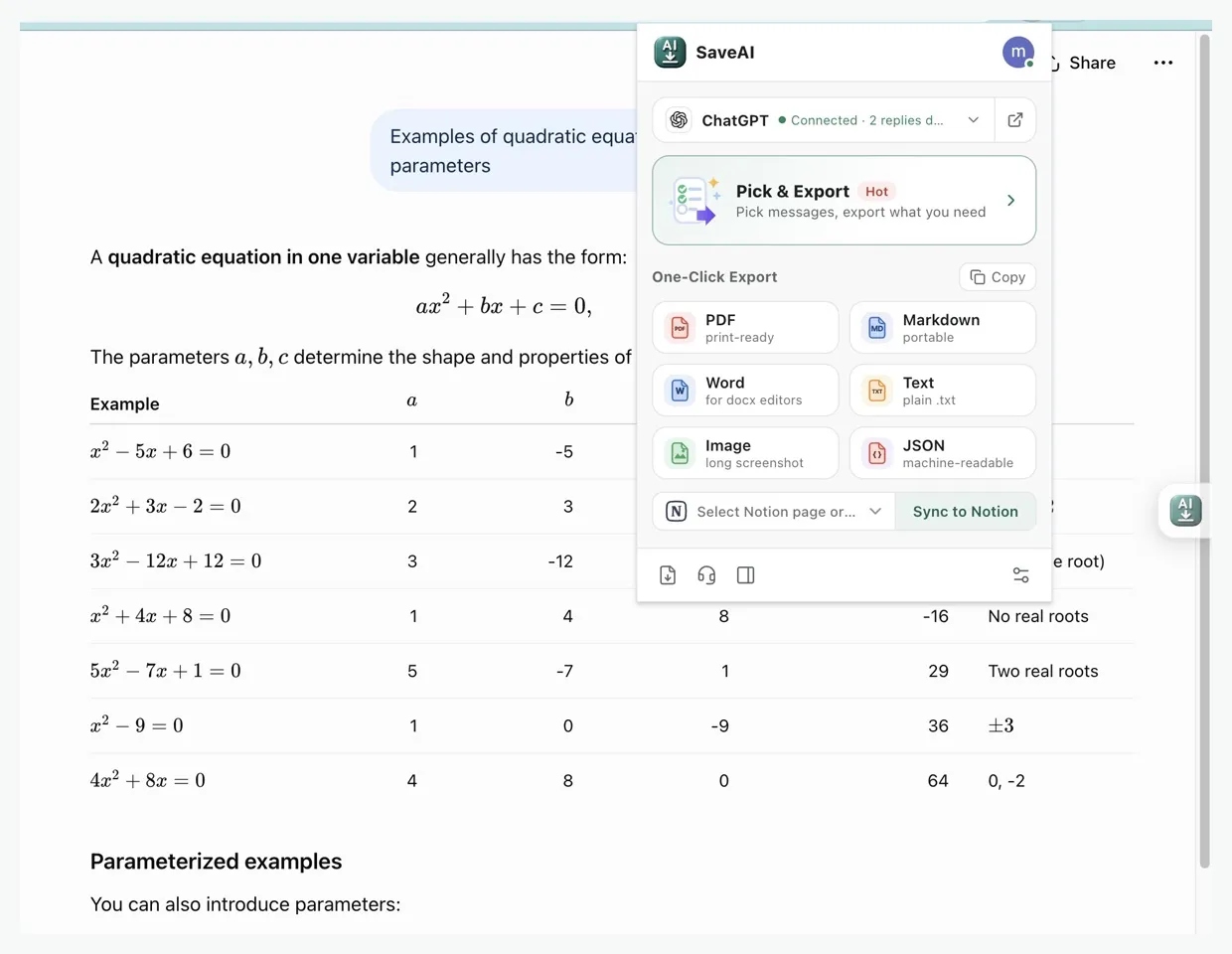
Files that organize themselves
Exports name themselves from a template — site, date and conversation title — so a folder of them sorts chronologically on its own, and your computer's search can index what is inside the files. The searchable archive you meant to build out of screenshots builds itself.
There is a backfill path too: the extension's side panel lists your conversation history, so the chats worth keeping can be selected and exported in one batch instead of one by one.
On privacy: Word, Markdown, JSON, TXT and the long screenshot are produced entirely inside your browser — the conversation is not sent anywhere. PDF renders on our server by default because that is much faster; files sit at unguessable URLs and are deleted after about a week, and one setting switches PDF to fully local rendering. The details are in the privacy policy.
The SaveAI extension is free and unlimited, on Chrome, Edge and Firefox. The next time an answer is worth keeping, keep the conversation — not a picture of it.
If you want the specifics for your platform, there are dedicated guides for ChatGPT, Claude, Gemini and more — and if what you have is an official data-export archive, the free readers for ChatGPT, Claude and Gemini turn it into readable documents right in your browser.
Ready to start exporting?
SaveAI works on 20 AI sites including ChatGPT, Claude, Gemini. Free to start, local-first.
Install for Chrome Free Install for Edge Free Install for Firefox Free